
1. What DealerPad Is
DealerPad is the Android tablet at the dealer's position. It is a read-only display + control panel for the Gamevue computer-vision system. It does not run any of the game logic itself; it talks to two Gamevue devices ("Gamevue A" and "Gamevue B") mounted at the table.
Because DealerPad is driven by a computer-vision system, the cards and chips must be placed within the normal play areas as defined by the standard game procedure so the cameras can see them. Anything placed outside these areas may not be recognized.
Roles of the device:
1. Display the live game state (hands, main bet, side bets) that the Gamevue devices compute.
2. Reset the current round when the dealer needs to (e.g. misdeal).
3. Identify the dealer currently on the table (sign-in / sign-out by employee ID) (Optional).
4. Health check + remote reboot of the two Gamevue devices, without requiring physical access.
2. Day-to-Day Layout
The app is a 2-page swipe dashboard. Two dots at the bottom indicate the current page. A small sun/moon button at the bottom-right toggles light/dark theme — purely cosmetic.
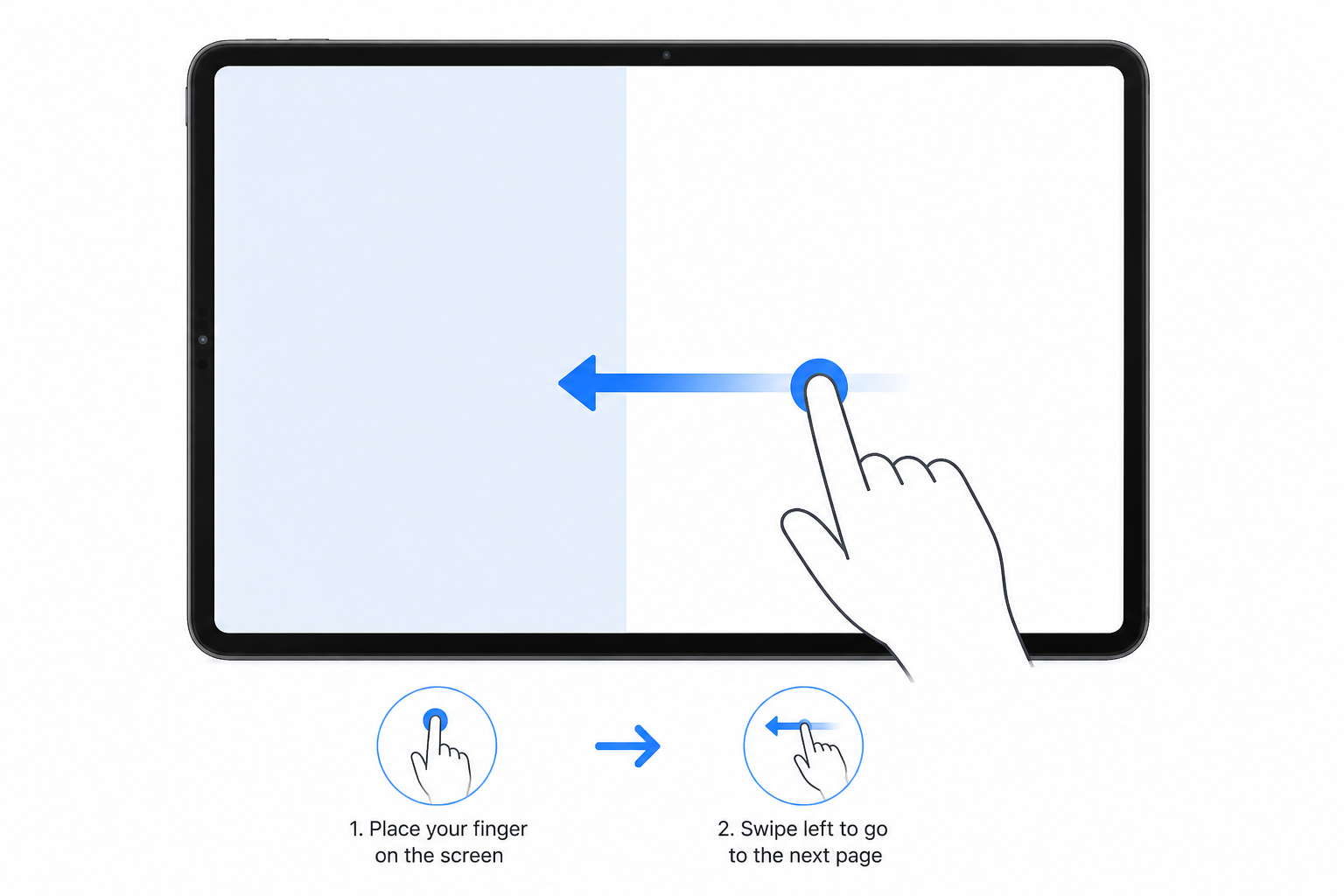
How to swipe: swipe horizontally with one finger across the screen to switch between Page 1 (Game Play) and Page 2 (Settings).
Page 1 — Game Play (live)
The main area shows the live game from the Gamevue devices. The exact widgets depend on game type:
- Blackjack: dealer's hand, player's hand, main bet, side bets , and current phase.
Outcome display per seat:
- Main bet — a result label (WIN / LOSE / PUSH / BUST / BJ 🎉) is shown above the hand, with the net amount below: the win amount in green on a win, the lost amount in red on a loss, PUSH on a push, or a dash while pending.
- Side bets — shown as small pills next to the hand: a win turns the bet green and shows the payout; a loss is marked with ❌ next to the bet; pending shows the bet amount only.
- Ultimate Texas Hold'em: up to 6 player seats, each showing hole cards and the Ante / Blind
/ Play
bets plus the Trips
side bet, along with the community cards and the dealer's final hand.
Outcome display per bet (Ante, Blind, Play, and Trips all use the same style): the top row is the bet amount; the bottom row is the result — the win amount in green on a win, the lost amount in red on a loss, PUSH on a push, or a dash while pending.
A red flashing alert bar at the top appears when the system flags an issue (e.g. unexpected bet, missing card).
Reset Round button (bottom-left): clears the current round. Used by the dealer in case of a misdeal or stuck state. This sends a control command to the Gamevue device.
Page 2 — Settings
Tab bar at the top with two tabs. The current table name and game type are shown in the top-right for reference.
Tab: Dealer Setting
- Search a dealer by name or employee ID, select to "sign in".
- Used for shift handover. The selected dealer is reported back to the Gamevue device.
- "Create New" can be used by IT to register a dealer that does not exist yet in the directory.
Tab: System (IT-facing)
- Health Check button — pings both Gamevue devices in parallel. Returns one of:
- Gamevue A: Online • Gamevue B: Online (green) — everything reachable.
- Either side Offline (red) — that Gamevue device is unreachable from the DealerPad.
- Reboot System button — opens a confirmation dialog ("This will reboot both Gamevue devices. Are you sure?"). Confirming sends an authenticated reboot command to both Gamevue devices. Use this when the system is stuck and a power cycle is the fastest fix.
3. Frequently Asked Questions
1. DealerPad is frozen / unresponsive
- Long-press the power button to reboot the DealerPad. This does not affect Gamevue state — the live game continues running on the Gamevue devices and will reappear once the DealerPad is back up.
2. DealerPad shows nothing / stale data
- Swipe to Settings → System and tap Health Check.
- Both Online → the Gamevue devices are up; the issue is likely the data stream. Try Reset Round on Page 1; if still stuck, do Reboot System.
- One or both Offline → check Gamevue power / network cable. The reboot button will not help if the device is unreachable.
3. Health Check shows one Gamevue Online and one Offline
- Some functionality may still work. You can try Reboot System to recover the offline unit. If the problem persists, submit a ticket to Gamevue support (see Section 4).
4. Frequent red alert bar at the top of the game screen
- Reset Round if the alert is stuck across multiple deals.
5. Cards or chips appear missing or incorrect on screen
- First confirm that the cards and chips are placed within the normal play areas so the cameras can see them. If the issue persists, take a photo of the entire table state / layout (cards, chip stacks, bet positions) and submit a ticket to Gamevue support.
6. A dealer cannot be found in Dealer Setting
- Use "Create New" in the Dealer Setting tab to register the dealer.
7. DealerPad screen glitches / touch is unresponsive
- This is an Android device hardware issue. Submit a ticket to Gamevue support.
4. Contact
For anything that is not resolved by Health Check + Reboot System (e.g. wrong cards, missing players, persistent alerts), submit a ticket to Gamevue support with: client name, table name, game type, time, and the alert text shown on screen.
- Phone: 323-YOUR-VUE (Prompt 2)
- Email (submit a ticket): support@northernvue.com
- Knowledge base: https://support.gamevue.ai/
Comments
0 comments
Please sign in to leave a comment.